
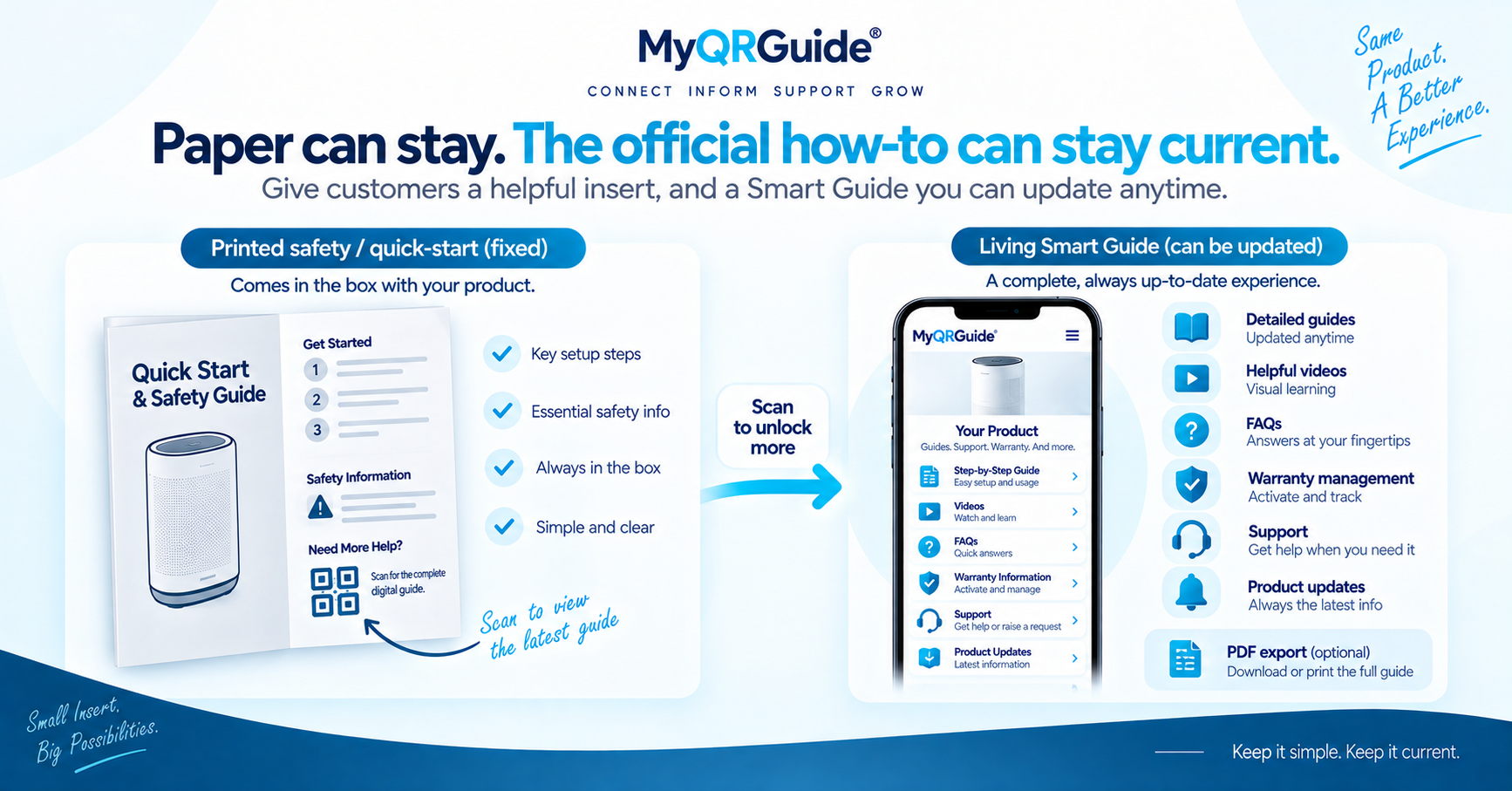
The job is not “make a QR.” The job is a live Smart Guide on a Product Experience, then a Smart QR™ that opens that same page. Dashboard clicks stay in Help. This page is the outcome checklist.
Explore Smart Guides: Digital Product Manuals and Smart Guides. For why a live guide is not the same as a PDF snapshot, see digital vs printed manuals.
What “done” looks like
- The Mini Site name matches the product or location the customer can see.
- The first use or care steps are in HTML on that page — not only in an uploaded file.
- The printed Smart QR opens that Mini Site on a phone that is not logged into your dashboard.
- Help (and warranty, if you offer it — included on MyQRGuide Free) is visible on the same experience.
- Search & AI listing is a separate opt-in. A live QR can stay unlisted from public sitemaps until you choose otherwise.
What this page does not cover
Click-by-click setup is in Add a Product Guide. Do not treat this essay as a replacement for that Help article.
Practical order
| Step | Outcome to check |
|---|---|
| Write the guide | A customer can complete the first task without creating a seller account. |
| Point the QR at the Mini Site | The code opens the Product Experience, not a generic homepage and not only a PDF. |
| Print and test | Follow packaging placement and scan testing before the carton ships. |
| Keep it current | After units leave the line, use the after-ship update process. The QR URL should stay the same. |
Illustration
This is a worked example, not a customer case study.
Incomplete. A QR on the box opens a PDF that still says “coming soon,” or it opens the brand homepage. Support still starts with “which product do you have?”
Useful. The QR opens that SKU’s Mini Site. The first steps are readable. If something fails, the customer can follow a troubleshooting guide or ask from approved copy.
A labelled walkthrough of scan → guide → question → warranty is in scan to a solution. Live opted-in Mini Sites, when any exist, are on Examples.