
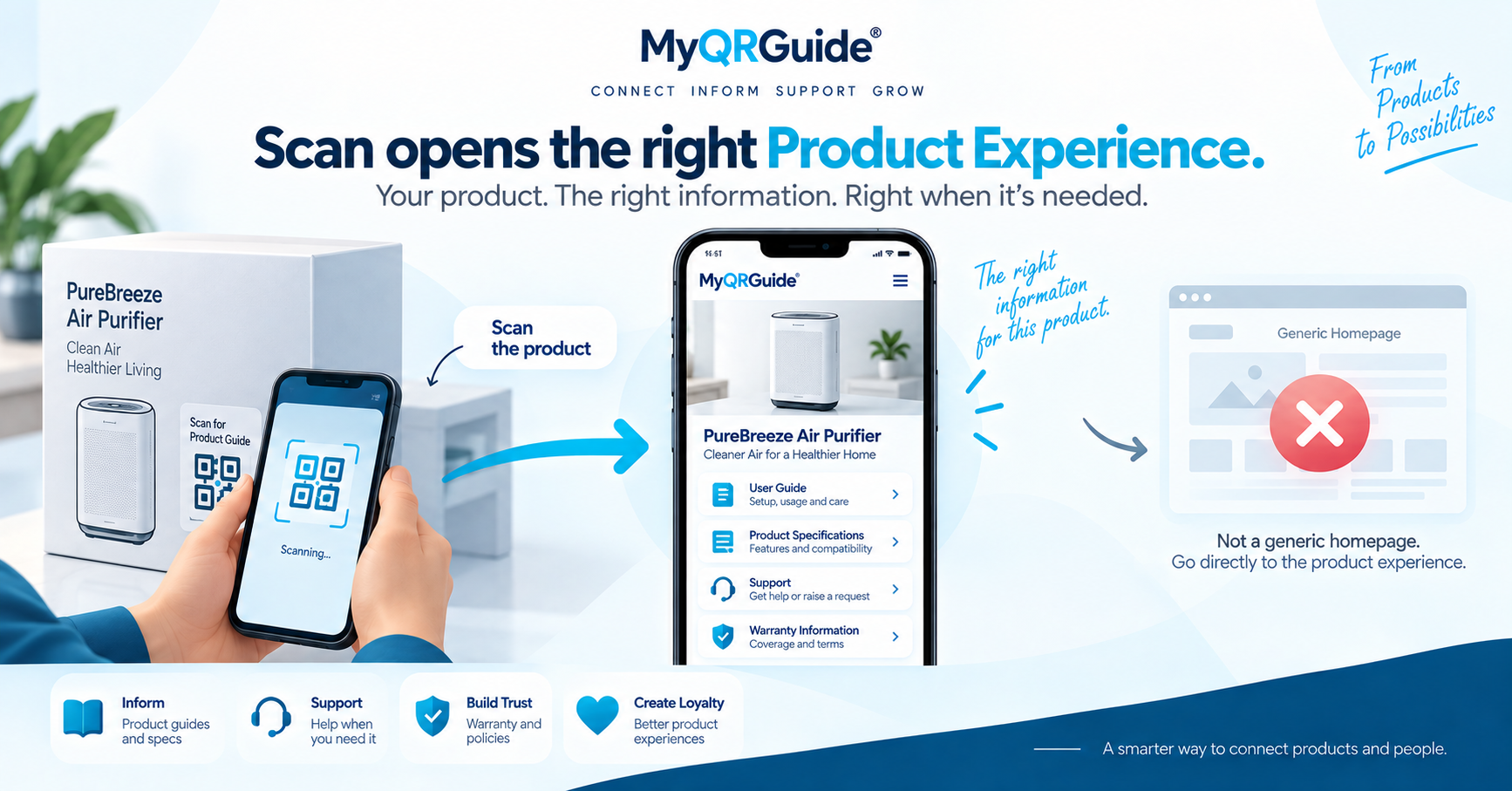
This page is a labelled walkthrough: scan → recognised product → first guide step → question → warranty. It is not a customer case study, not a conversion rate, and not a screenshot gallery. Live opted-in Mini Sites, when any exist, are on Examples. If that page is empty, no public Mini Site has opted into search and AI listing yet — that is expected, not a broken demo.
What should load after a scan is in Smart QR product support. How to publish the guide is in create a digital product manual with a QR.
The path (illustration)
Imagine a boxed appliance with a Smart QR™ on the inner card. The customer is not logged into your dashboard.
- Scan. The camera opens the Product Experience for that SKU. The name on the page matches the name on the box.
- First step. “Start here” is HTML: unbox, power, first use. No seller account is required to read it.
- If it fails. A troubleshooting guide names the symptom, the safety note, and the next check — see the troubleshooting template.
- Ask. AI Product Expert™ answers from that approved copy. If the fact is missing, it should say so and offer a person. AI answers can be incomplete or incorrect.
- Register. Warranty registration, when the brand offers it, is one action on the same Mini Site. It is included on MyQRGuide Free. Submitted records stay private.
What this is not
| Do not treat this page as | Use instead |
|---|---|
| A real product screenshot | Open /examples for live opted-in Mini Sites. This essay does not invent screen captures. |
| Dashboard click-path | Add a Product Guide and Warranty & Club Tools. |
| Proof of ranking or AI citation | Nothing here promises search position or that an assistant will quote you. |
Check it yourself
- Print placement and a two-phone test: packaging and scan testing.
- Capability overview: Smart QR for Products and Service Locations.
If your own Mini Site is live but unlisted, the QR can still open it. Listing on Examples and in public sitemaps waits until you opt in to Search & AI.