
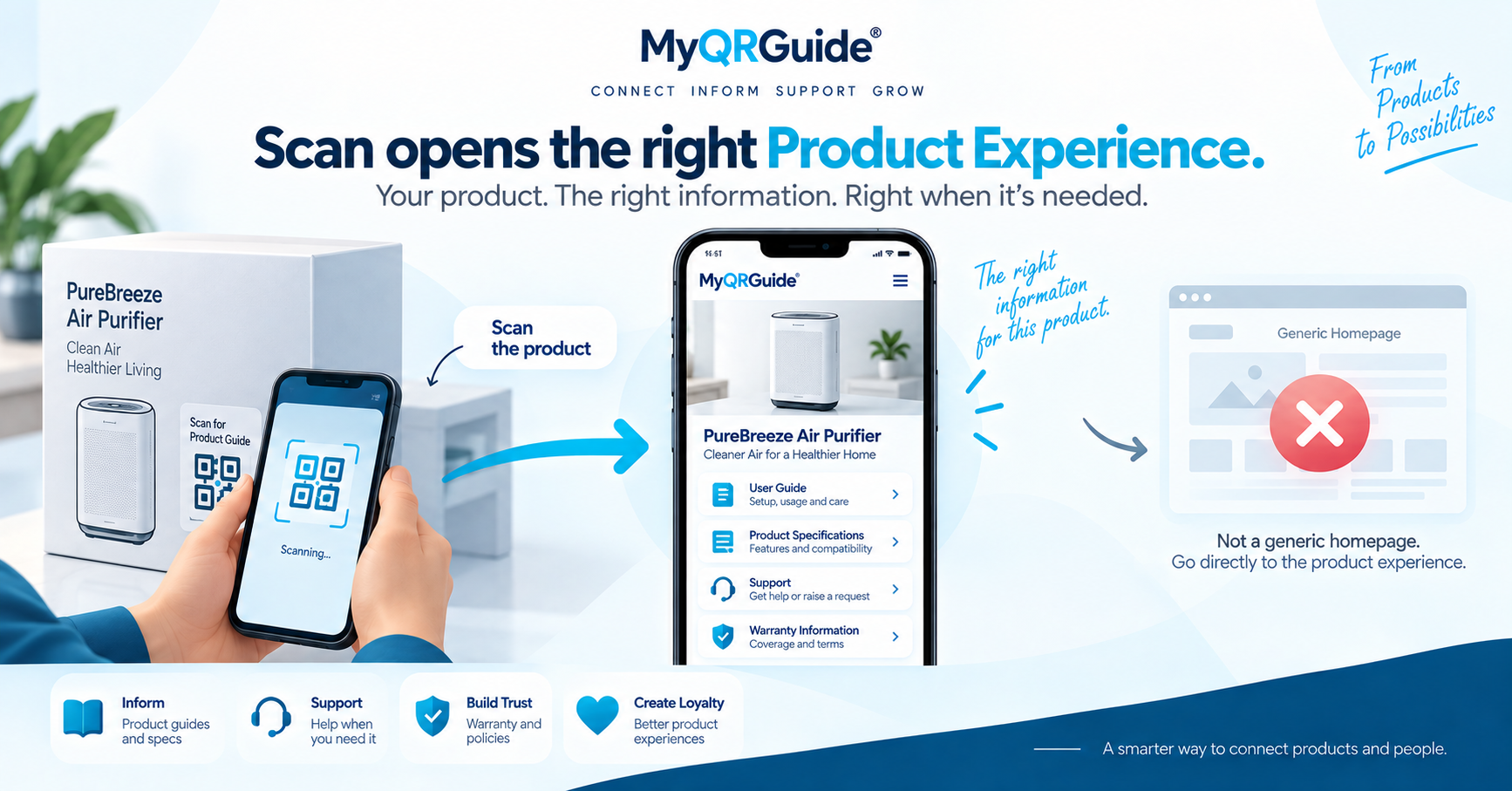
A useful Smart QR™ scan does one job: open the right Product Experience for the thing in the customer’s hands (or the location they are standing in). If the scan lands on a generic homepage, an expired campaign, or a login wall, the QR failed as support. Explore Smart QR: Smart QR for Products and Service Locations.
What should load
- The product or location name the customer can recognise
- Smart Guides for use, care, or booking
- A way to ask for help (AI Product Expert™ and/or people), from approved knowledge
- Warranty registration when the brand offers it — included on MyQRGuide Free
- Only the next steps the brand actually runs (loyalty, parts, booking)
After-scan checklist
- Scan the printed code on a phone that is not already logged into your dashboard.
- Confirm the page title matches the item or location in hand.
- Open the first how-to step without creating an account.
- Find help and, if you offer it, warranty on that same page.
- If Search & AI is off, the page can still open by QR. It should stay out of public sitemaps until you opt in.
When the scan fails (illustration)
This is a worked example, not a customer case study.
Failed. The code opens the brand homepage. The customer hunts for a model number, hits a login, or lands on last season’s campaign. Support still starts with “which product do you have?”
Useful. The code opens that SKU’s Mini Site. The name, first steps, and a question path are visible. Warranty registration is one action on the same experience when the brand offers it.
Publication vs search
The Mini Site can be live for QR and still unlisted from search and AI until the seller opts in. Direct scans keep working. That split is deliberate: a live QR is not an invitation to index every test site.
Compare formats in digital vs printed manuals. For marketplace-sold units, see marketplace post-purchase.